
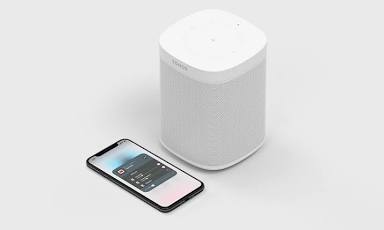
Introduction to Sonos and Apple Home Integration
Sonos and Apple Home are two of the most popular smart home ecosystems, and integrating them can enhance your audio experience and streamline home automation. By linking Sonos speakers to Apple Home, users gain access to unified control, Siri voice commands, and seamless music playback across Apple devices.
With this integration, you can use AirPlay to stream audio directly from your iPhone, iPad, or Mac to your Sonos speakers. Additionally, HomeKit automation allows you to include Sonos speakers in routines, such as playing your favorite playlist when you arrive home or pausing music when you leave. While Sonos does not natively support HomeKit, the combination of AirPlay and Apple Home provides a powerful workaround.
This guide will walk you through the step-by-step process of connecting Sonos speakers to Apple Home, setting up Siri voice control, leveraging AirPlay for seamless streaming, and incorporating Sonos into HomeKit automations.
Sonos and Apple HomeKit Compatibility
While Sonos doesn’t natively support HomeKit, you can still enjoy integrated control through AirPlay 2. This allows you to add Sonos speakers to your Apple Home setup and control them using Siri and HomeKit scenes. Future updates are expected to increase compatibility with the Matter protocol, potentially offering more seamless integration.
Steps to Connect Sonos to Apple Home
To integrate Sonos with Apple Home, you need an AirPlay 2-compatible Sonos speaker. These models include:
Step 1: Ensure Your Sonos Speaker Supports AirPlay 2
Only AirPlay 2-enabled Sonos speakers can be added to Apple Home. If your Sonos model does not support AirPlay 2, you can still integrate it using an AirPlay-compatible Sonos speaker as a bridge (grouping non-AirPlay speakers with an AirPlay-supported speaker).
Step 2: Update Sonos and Apple Devices
- Open the Sonos app and ensure your system is updated.
- Check that your iPhone, iPad, or Mac is running the latest version of iOS/macOS.
Step 3: Add Sonos Speaker to Apple Home
- Open the Home app on your iPhone or iPad.
- Tap the ‘+’ icon in the top right corner.
- Select ‘Add Accessory’, then ‘Don’t Have a Code or Can’t Scan?’
- Your AirPlay-compatible Sonos speaker should appear in the list. Tap it to add it to your Apple Home.
- Assign the speaker to a room for easier Siri voice control.
Once completed, your Sonos speaker is now linked to Apple Home and can be controlled via Siri commands and HomeKit automations.
Using Siri to Control Sonos Speakers
Once your Sonos speakers are integrated into Apple Home, you can control them using Siri on your iPhone, iPad, Mac, or HomePod. Siri commands allow you to:
- Play and pause music – “Hey Siri, play some jazz on the living room Sonos.”
- Adjust volume – “Hey Siri, turn up the volume on the kitchen Sonos.”
- Control playback – “Hey Siri, skip this song on Sonos.”
- Play audio from Apple Music or other services – “Hey Siri, play my morning playlist on Sonos.”
Streaming with AirPlay on Sonos Speakers
How to AirPlay to Sonos
- Open Apple Music, Spotify, YouTube, or any app with audio.
- Swipe down on iPhone (or up on older models) to access the Control Center.
- Tap the AirPlay icon in the music widget.
- Select your Sonos speaker from the list.
Adding Sonos Speakers to HomeKit Automations
Creating HomeKit Automations with Sonos
- Open the Home App – On your iPhone or iPad, launch the Home app.
- Go to Automations – Tap the Automation tab at the bottom.
- Create a New Automation – Tap the ‘+’ in the top right corner and select ‘Add Automation.’
- Choose a Trigger – Select when you want the automation to run.
- Select Your Sonos Speaker – Choose the Sonos speaker you want to include in the automation.
- Set the Action – Define what you want the speaker to do, such as play/pause audio, adjust volume, or change playback source.
- Save the Automation – Tap Done to activate it.
HomePod vs. Sonos: A Comparative Analysis
| Feature | HomePod | Sonos |
|---|---|---|
| Sound Quality | Excellent bass, spatial audio | Wider range of models, customizable setups |
| Apple Ecosystem | Deep HomeKit & Siri integration | Limited HomeKit support, AirPlay compatibility |
| Music Services | Apple Music preferred | Supports Apple Music, Spotify, Tidal, and more |
| Multi-Room Audio | Works seamlessly with HomePods | Sonos app offers better control |
| Customization | Limited | Expandable with soundbars, subs, and surrounds |
Future Prospects: Matter Protocol and Enhanced Compatibility
The upcoming Matter smart home standard is set to improve device interoperability across brands like Apple, Google, Amazon, and Sonos.
Sonos has announced plans to support Matter, which could eventually bring native HomeKit integration rather than relying solely on AirPlay.
By following this guide, you can maximize the potential of your Sonos speakers within the Apple ecosystem, unlocking powerful smart home automation and an enhanced audio experience.
Frequently Asked Questions
Does Sonos work with Apple HomeKit?
Yes — Sonos works with Apple HomeKit, but with limitations.
Older Sonos models without AirPlay 2 don’t show up in HomeKit unless you use a third-party bridge like Homebridge.
Most newer Sonos speakers that support AirPlay 2 can be added to the Apple Home app.
Once added, you can use Siri to play/pause music, adjust volume, and include the speaker in HomeKit scenes and automations.
Sonos does not function as a fully native HomeKit accessory (like lights or locks). Integration mainly works through AirPlay 2 control, not deep HomeKit device controls.
How do you add Sonos speakers to Apple Home?
Before You Start
- Make sure your Sonos speaker supports AirPlay 2.
- Your iPhone/iPad must be on the same Wi-Fi network as the speaker.
- Update to the latest versions of iOS and the Sonos app.
Steps to Add Sonos to Apple Home
Set up the speaker in the Sonos app
If it’s new:
- Open the Sonos app
- Tap Set up a new system
- Follow the on-screen instructions
If it’s already set up, just make sure it’s working.
Enable AirPlay (if needed)
Most AirPlay 2–compatible Sonos speakers have this on by default, but you can check:
- Open the Sonos app
- Go to Settings → System → [Your Speaker]
- Confirm AirPlay is enabled
Add the speaker in the Apple Home app
- Open the Home app on your iPhone or iPad
- Tap + (top right)
- Tap Add Accessory
- The Sonos speaker should appear automatically
- Select it and assign it to a room
If it doesn’t appear:
- Open Control Center → AirPlay audio menu
- Confirm the speaker shows as an AirPlay device
- Restart your router and speaker if needed
What You Can Do After Adding
Select it as an AirPlay destination from Apple devices
Use Siri to play music on that speaker
Adjust volume
Include it in scenes and automations
More from Smart Home + Garden
 How to Use Apple AirTags to Find Your TV Remote
 Leviton Smart Light Switch Review + Pros & Cons
TREATLIFE Smart Dimmer Switch Review + Pros and Cons
Leviton Smart Light Switch Review + Pros & Cons
TREATLIFE Smart Dimmer Switch Review + Pros and Cons
 How to Connect IKEA Trådfri Smart Bulbs to Apple HomeKit
 Apple AirTag Hacks and Tricks for Tracking Pets, Kids, Cars, and More
 How to Set Up Your Google Calendar on Google Home
Leave a Reply